Data planning
How much travel data do you need?
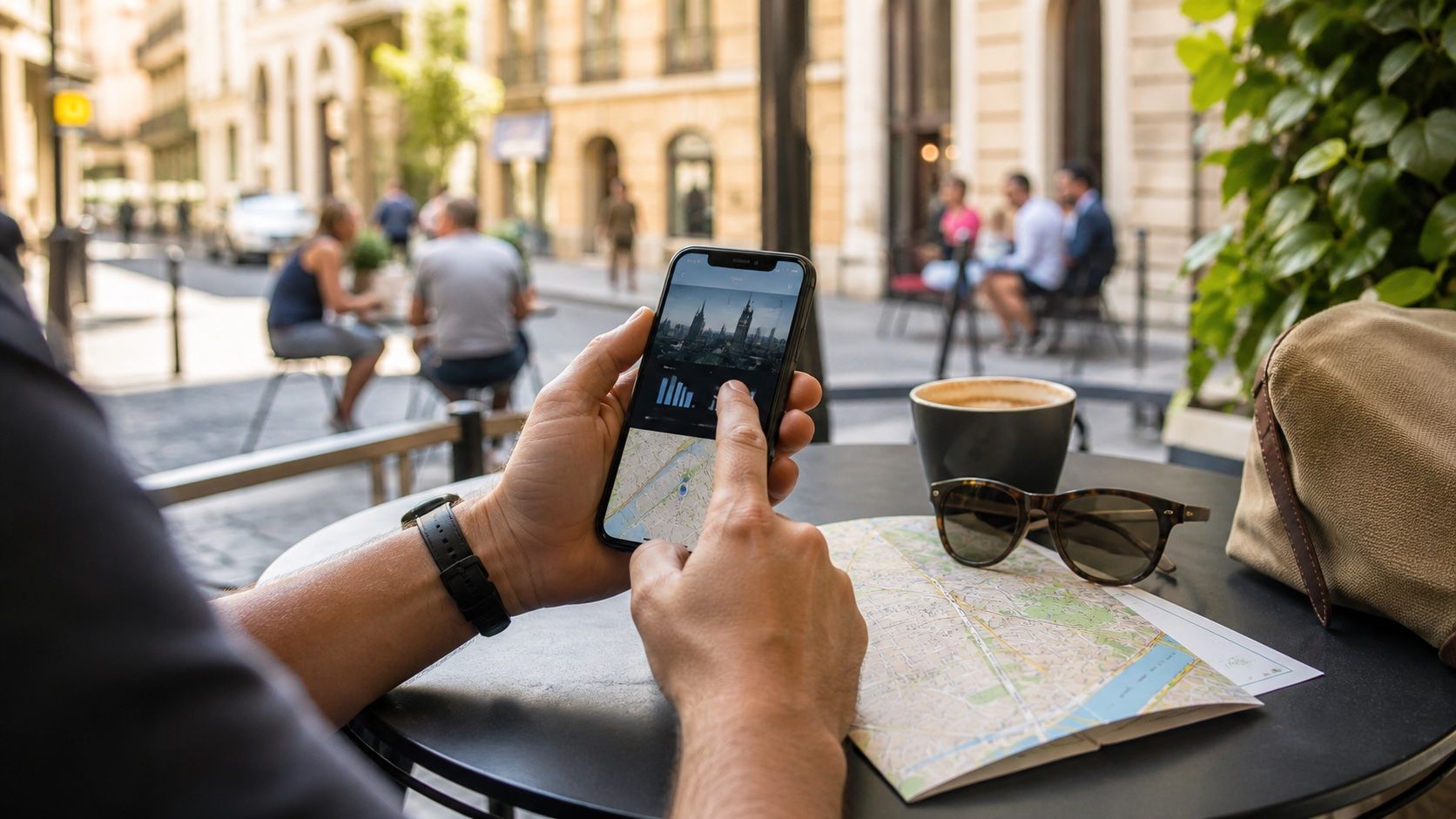
Choose data from your real phone usage and travel habits. Maps and messaging are relatively light; video, cloud backups and hotspot use can consume a plan quickly.
A practical starting estimate
These ranges are planning guides, not guarantees. App quality settings, automatic downloads, video resolution, hotspot use and time away from Wi-Fi can change consumption substantially.
| Travel style | Typical use | Starting point for 7 days |
|---|---|---|
| Light | Maps, transport apps, text messaging and occasional browsing | 1–2 GB |
| Everyday | Regular maps, messaging with photos, browsing, social feeds and some music | 3–5 GB |
| Heavy | Frequent social video, video calls, streaming or limited access to Wi-Fi | 10 GB or more |
| Work or hotspot | Laptop tethering, large files, cloud sync or long video meetings | Estimate from measured usage; consider 20 GB or more |
Use your own phone as the best estimate
Look at a recent week when your routine resembled the trip. Separate mobile data from Wi-Fi use, then add a modest buffer for unfamiliar navigation and time spent away from trusted Wi-Fi.
- On iPhone: open Settings, then Cellular or Mobile Data, and review usage by app. Reset Statistics at the start of a normal week if the current period is too long.
- On Pixel: open Settings, Network & internet, SIMs, then App data usage. Menu names can vary on other Android phones.
- Check whether cloud photo backup, podcast downloads and operating-system updates currently use mobile data.
- If travelling as a group, calculate hotspot use for every connected device.
What usually uses the most data
- High-resolution video streaming and short-form video feeds.
- Video calls, especially group calls or high-definition meetings.
- Photo and video backup to cloud storage.
- Laptop hotspot use, software updates and large attachments.
- Offline downloads accidentally left until after departure.
Make a smaller plan go further
- 1Download offline maps, tickets, playlists and entertainment over Wi-Fi before travel.
- 2Turn off mobile data for cloud photo backup and automatic app updates.
- 3Use lower streaming quality and disable video autoplay where possible.
- 4Turn on Low Data Mode on iPhone or Data Saver on Android.
- 5Check plan usage every day or two rather than waiting for the connection to stop.
Match validity as well as data
A large allowance is not useful if the plan expires before the end of the trip. Choose a validity period that covers arrival through departure, including time-zone changes and a small disruption buffer.
Official references
Phone menus change over time. These manufacturer references are the source of truth for current device instructions.